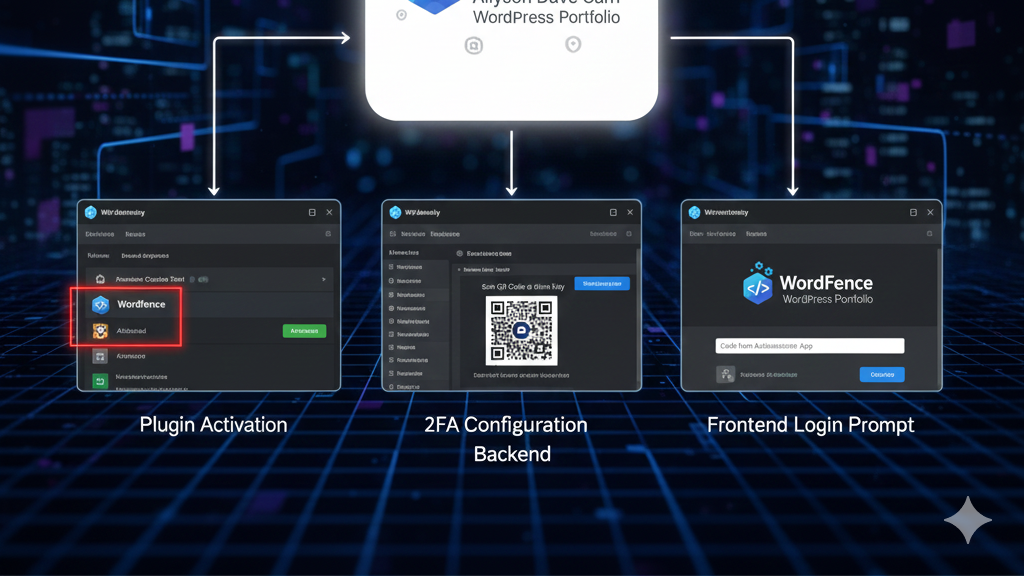
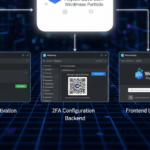
In today’s digital world, a simple username and password are not enough to protect a professional website from hackers. This activity focused on implementing essential security layers by installing WordFence, one of the leading security plugins for WordPress, and configuring Two-Factor Authentication (2FA). The goal was to drastically increase the security of the administrative login.
Backend Configuration Proof
The following screenshots confirm the installation of WordFence and the successful setup of 2FA.
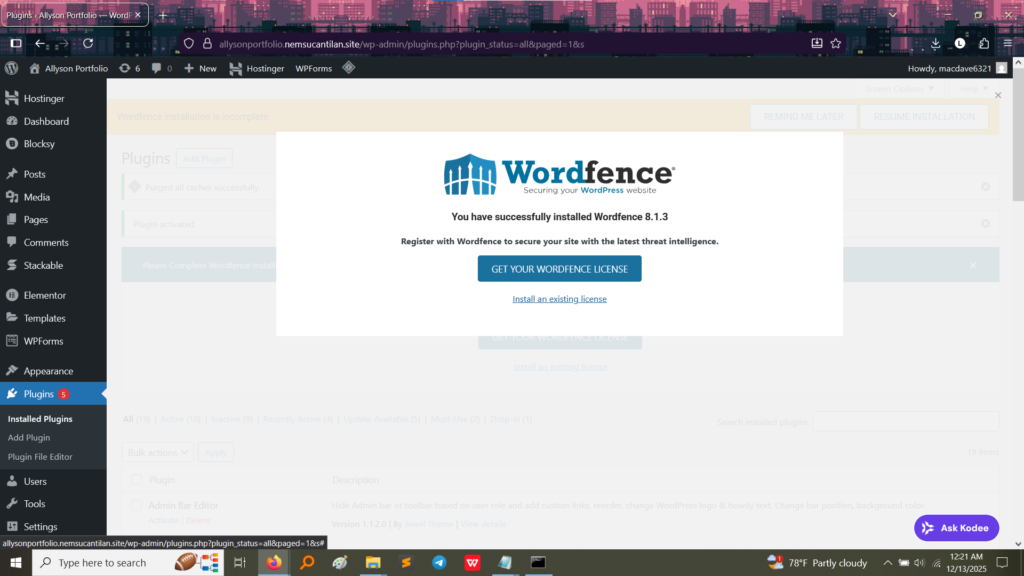
1. WordFence Installation Success
This image confirms that WordFence Version 8.1.3 was successfully installed and activated on the website. This forms the foundation for all subsequent security measures.
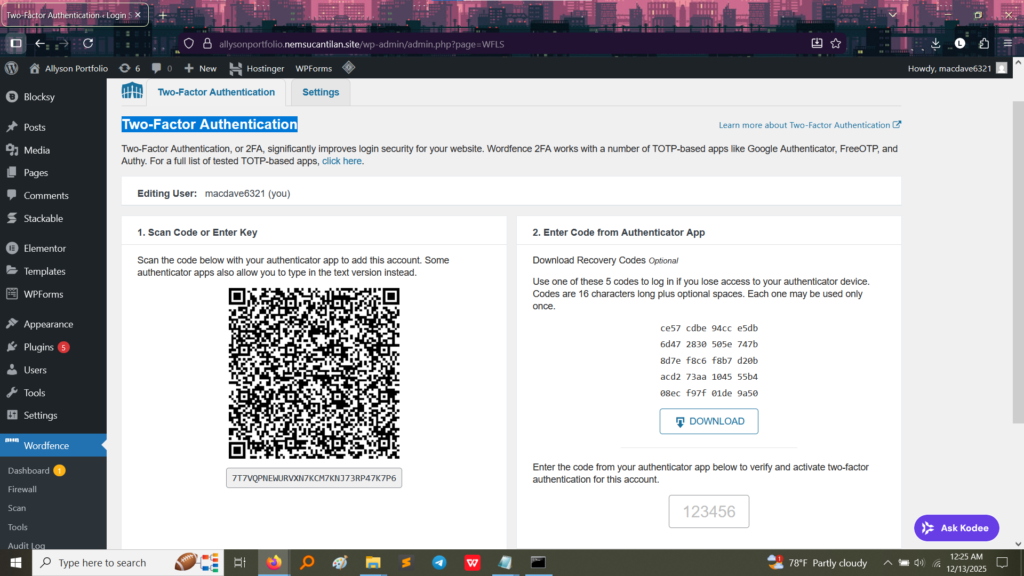
2. Two-Factor Authentication Setup
This screenshot shows the specific configuration page for Two-Factor Authentication within the WordFence settings.
Proof of Configuration: The page displays a QR Code and a setup key, which are used to link the administrator’s account to a mobile authenticator app (like Google Authenticator or Authy).
The Process: I had to:
Install the authenticator app on my phone.
Scan the QR code shown in the screenshot.
Enter the 6-digit verification code generated by the app into the “Enter Code from Authenticator App” field to confirm the connection.
Security Feature: I also secured the Recovery Codes listed here. These are crucial backup codes used to log in if the mobile device is lost or inaccessible. This proves the setup was complete and functional.
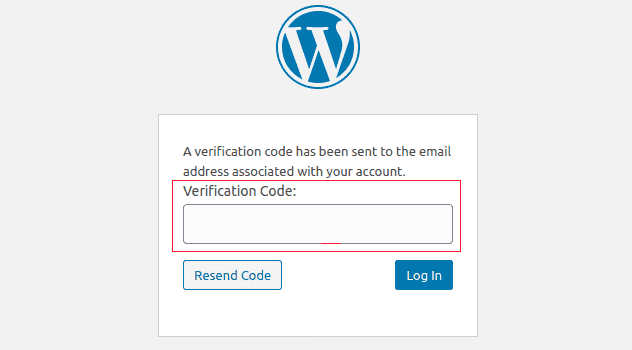
Frontend Security Feature (The Login Prompt)
The user enters their Username and Password (Factor 1: Something the user knows).
WordFence then redirects the user to a new screen asking for the 6-digit code (Factor 2: Something the user has—their phone).
Result: Without the live code generated by the linked mobile app, no one can gain access, even if they know the username and password. This makes brute-force attacks virtually impossible.
What I Took Away From This Activity
Implementing 2FA is a non-negotiable step for professional website management. The main lessons were:
Layers of Security: I learned that security is best achieved in layers. WordFence provides a firewall and scanning, and 2FA adds a personal layer of defense at the login screen.
Mitigating Brute-Force Attacks: The primary function of 2FA is to stop automated password guessing (brute-force attacks) because the required code changes every 30 seconds and is only available on the user’s physical device.
Authentication Protocols: I gained practical experience using industry-standard protocols like TOTP (Time-based One-Time Password) apps to secure sensitive areas of the site.