Activity 3: Text Formatting Exercises

What was this all about?

After learning the basic paragraph tags and styling in Activities 1 and 2, Activity 3 was about diving deeper into structural and specialized HTML tags. We learned how to format text for math, lists, quotes, addresses, and even how to show text that has been “deleted” or “inserted”β€”all using special HTML tags designed for these exact purposes.

Showing the Final Look (The Output)

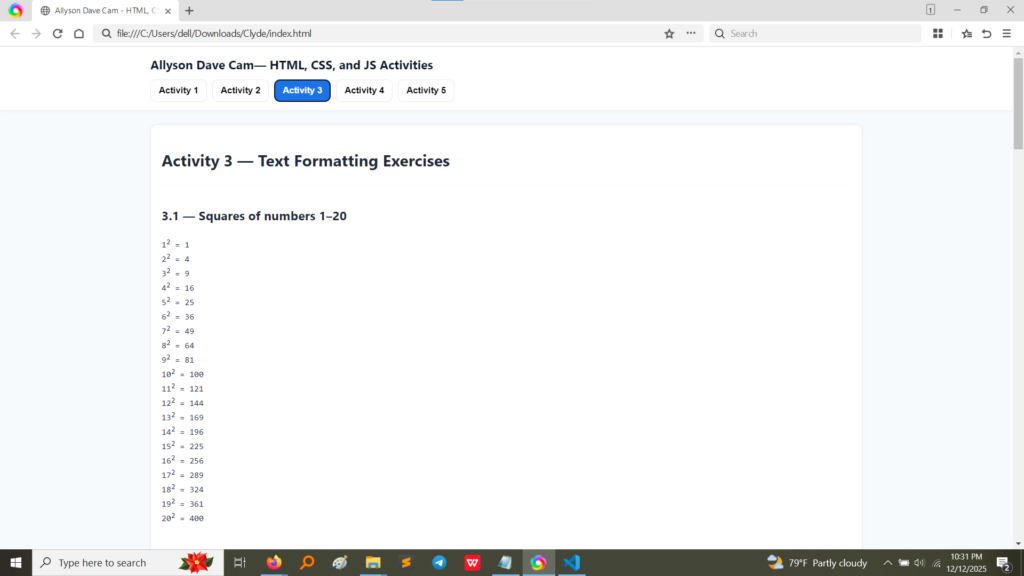
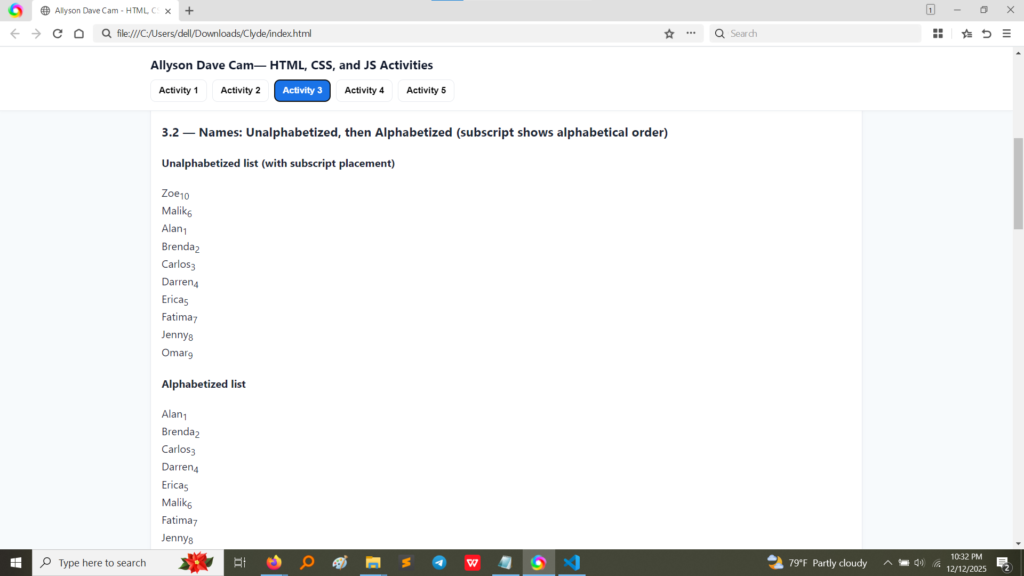
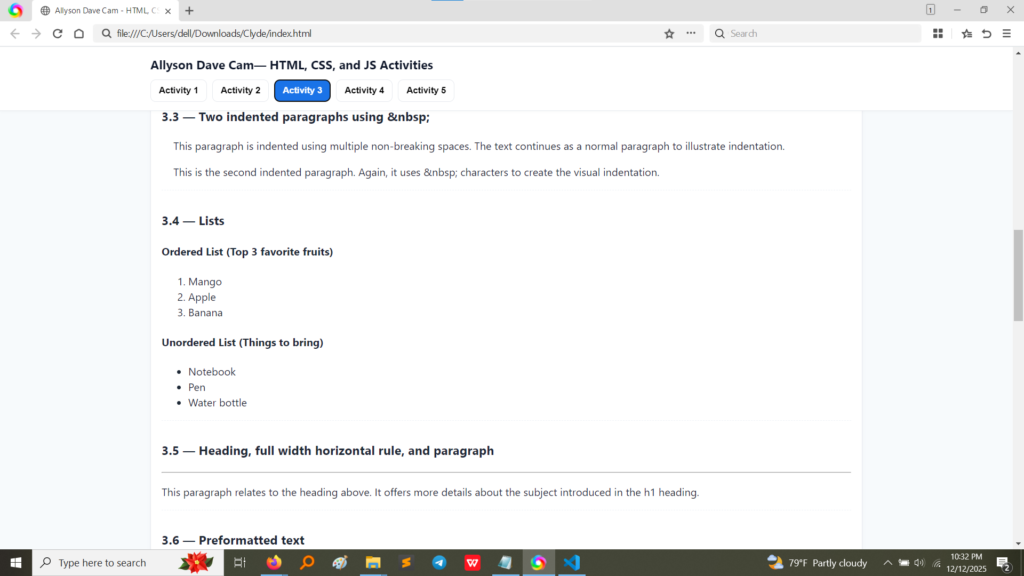
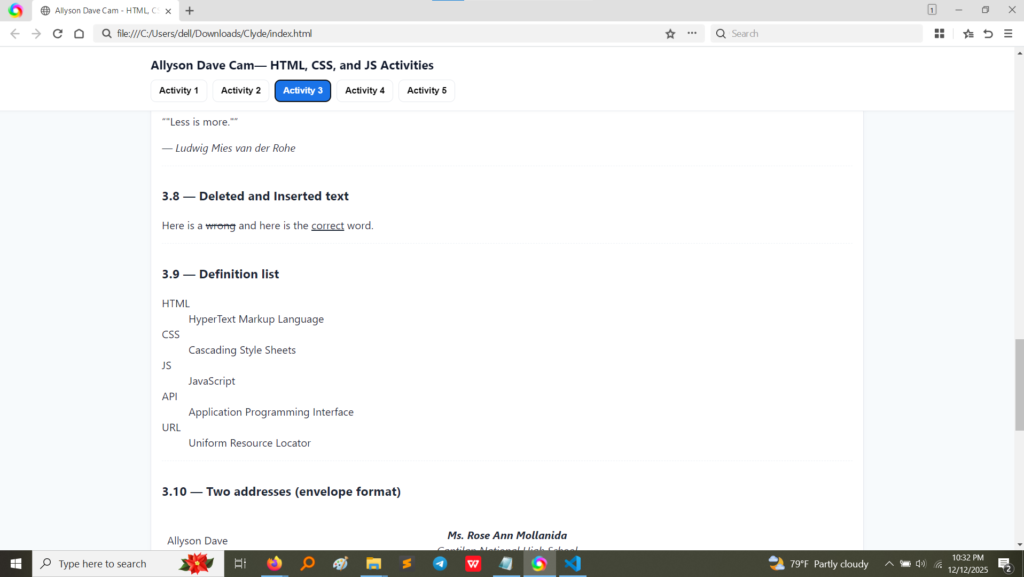
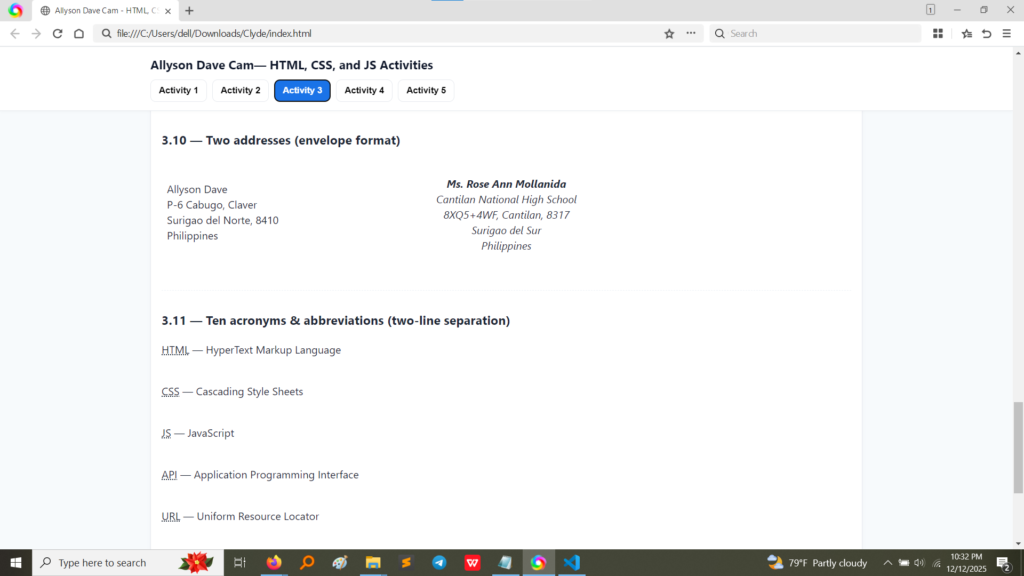
The following screenshots show the results of the different formatting exercises we completed. Notice how each tag creates a very specific visual effect and structure.
Taking a Peek at the Code

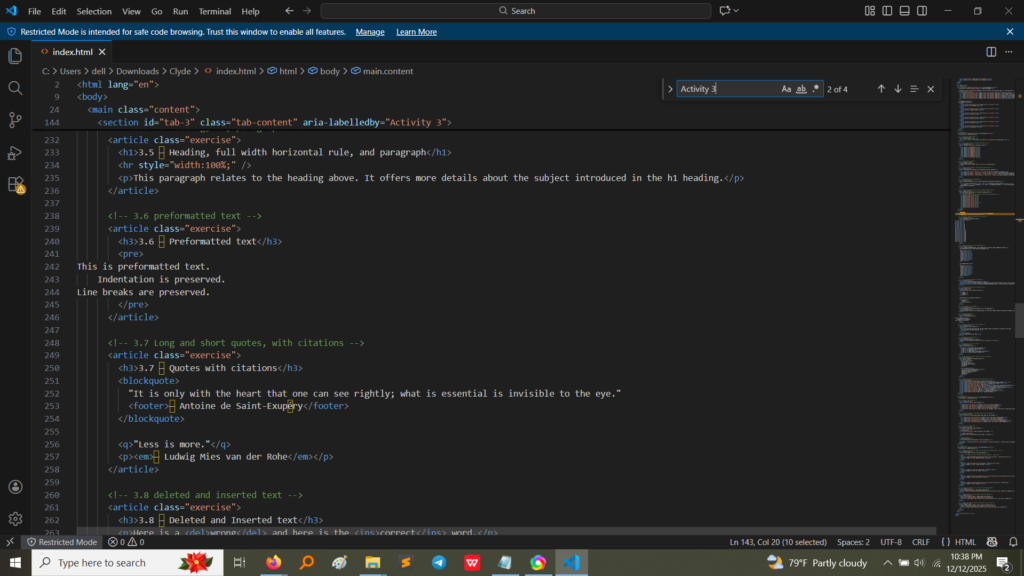
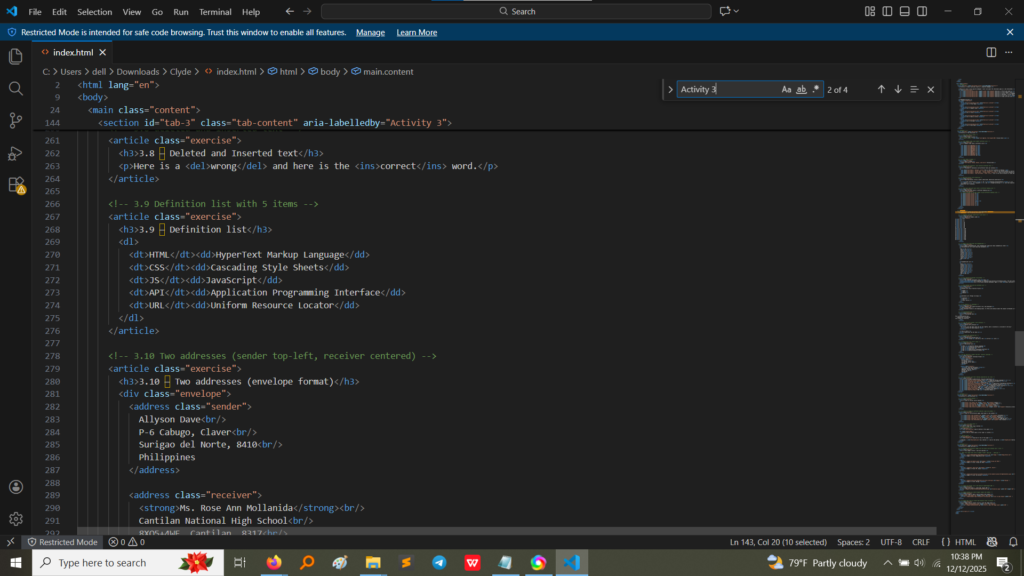
These screenshots show the HTML code for Activity 3, highlighting the unique tags used for complex formatting tasks.
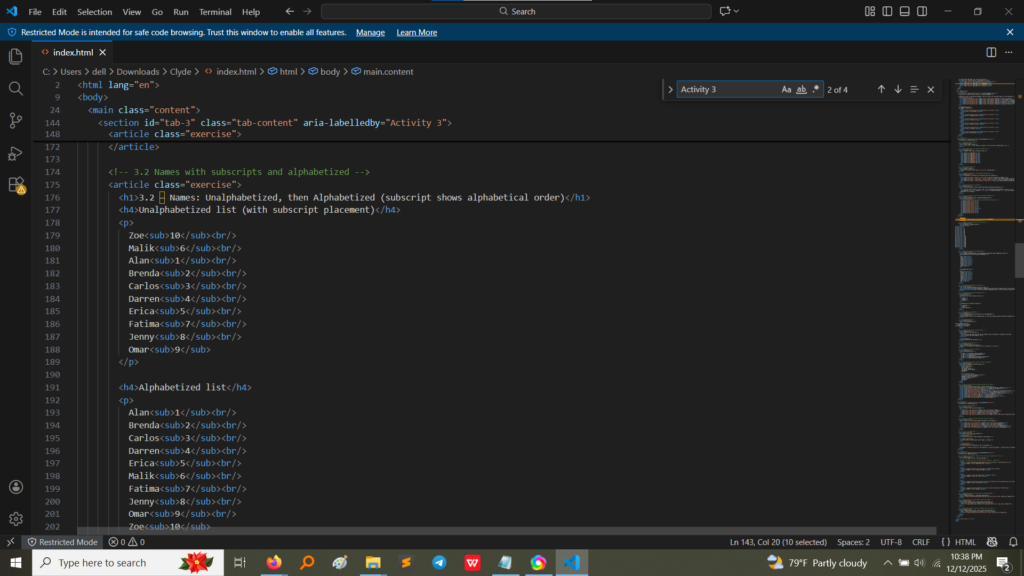
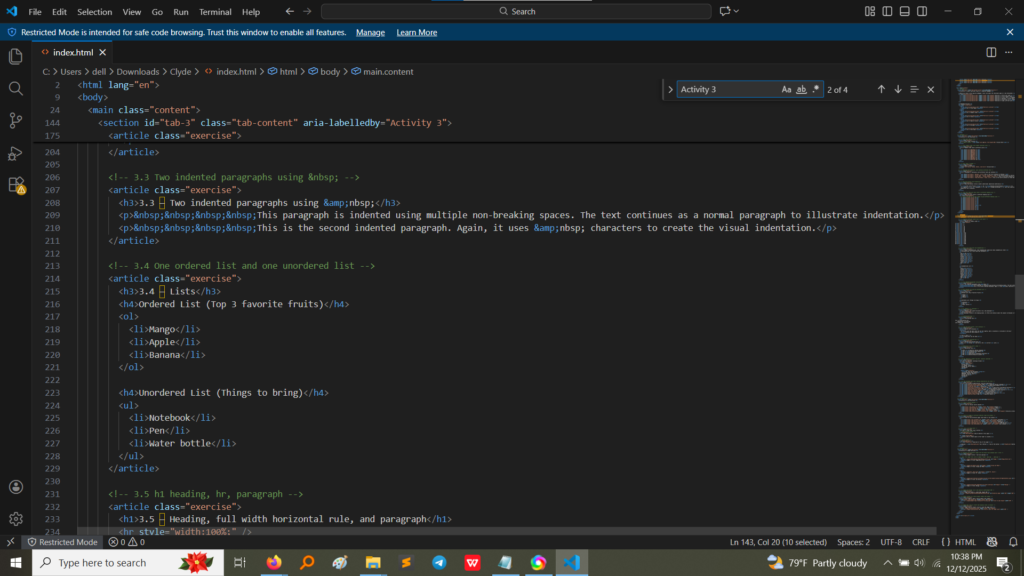
Let’s look at the most interesting parts:

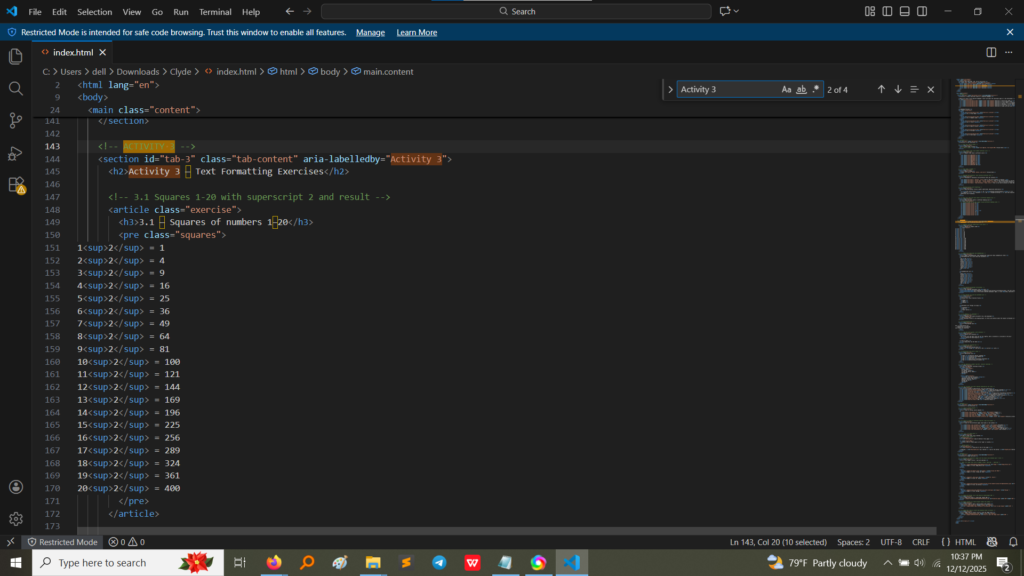
Exercise 3.1 & 3.2: Math and Indexing (Superscript/Subscript)

  • The Goal: Show squares of numbers (X2) and use a numbered index system.
  • The Technique: We used the <sup> (Superscript) and <sub> (Subscript) tags.
    • Superscript (X2): This makes text sit slightly above the normal line, which is perfect for powers in math (like 22).
    • Subscript (X2​): This makes text sit slightly below the normal line. I used this to show the alphabetical order of the names (e.g., Zoe with a small 10 written below it).
  • The Code (See Lines 150-170 and 179-202): By wrapping the number in the tag, like 2<sup>2</sup>, the browser instantly handles the formatting, which is much cleaner than trying to use complex styling.

Exercise 3.4: Better Lists (Ordered and Unordered)

  • The Goal: Create a numbered list (for favorite fruits) and a bulleted list (for things to bring).
  • The Technique: We used the standard <ol> (Ordered List) for numbered lists and <ul> (Unordered List) for bullet points, with <li> (List Item) for the content of each item.
  • The Code (See Lines 216-228): This showed me that HTML automatically handles the numbering or bullet points. You just provide the items, and the browser does the rest!

Exercise 3.6: Preserving Whitespace (Preformatted Text)

  • The Goal: Print text exactly as I typed it, including all spaces, indents, and line breaks.
  • The Technique: I used the <pre> (Preformatted) tag.
  • The Code (See Lines 241-245): Normally, HTML ignores extra spaces or blank lines. The <pre> tag is special because it preserves every character, making it great for displaying poetry, code examples, or structured data where formatting is critical.

Exercise 3.8: Edits and Revisions

  • The Goal: Show a revision, like correcting a mistake in a sentence.
  • The Technique: We used <del> (Deleted text) and <ins> (Inserted text).
    • <del>: The browser automatically puts a strikethrough line through the text to show it’s removed.
    • <ins>: The browser automatically underlines the text to show it’s new.
  • The Code (See Line 263): Here is a <del>wrong</del> and here is the <ins>correct</ins> word. This taught me how to use HTML to give meaning to content edits, not just visual changes.

Exercise 3.9: Creating a Dictionary (Definition List)

  • The Goal: List technical terms (like HTML, CSS) and provide their definitions.
  • The Technique: We used the <dl> (Definition List), <dt> (Definition Term), and <dd> (Definition Description) tags.
  • The Code (See Lines 270-275): This is the proper structural way to create a glossary or dictionary. The browser often indents the descriptions (<dd>) slightly, making the list easy to read and understand.

What I Took Away From This Activity

Activity 3 was a major leap forward from just basic paragraphs. The main lessons were:

  1. Semantic Tags are Powerful: I learned that HTML has specific tags for specific jobs (like <address>, <dl>, <del>). Using these semantic tags tells the browser and search engines exactly what kind of information they are looking at, which is far better than just styling a paragraph.
  2. Structural Organization: I mastered the difference between the three main list types: ordered, unordered, and definition lists, and how to use the correct one to structure data logically.
  3. Handling Special Content: I now know how to correctly format mathematical expressions (X2) and display content that requires precise layout using the <pre> tag.